


Rabu, 09 Juni 2010

This information may already be too outdated to be discussed, but there is nothing wrong, perhaps there are readers who ever get annoyed when playing a song (mp3) use winamp, which display a written on play list track-1, track-2 and so on or the display title not the same as the display in windows explorer.
This is usually caused the file is the result of converting a CD or VCD. Or maybe we ever downloaded mp3 files from a website, and when we play using winamp, appears the title is too long with website address information where we download the file, as shown below.
 In the picture above is written the name of the singer - the title track [a website address where we download the file]. Actually it is not so disturbing, but sometimes we come across with website address that is inserted before the title and after the title that may disturb us to read the file information which we play.
On this occasion, the author wants to share information on how to change the title of an existing file in winamp play list in accordance with what we want.
1. Play files using winamp.
2. Right-click the file that was played.

3. Select the view file info,
4. Will display the following dialog box:

5. Select the box mark ID3v1 and ID3v2 Tag.
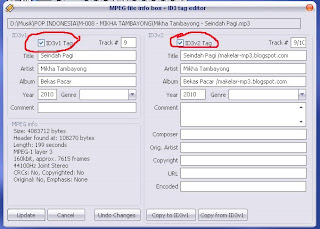
6. Fill the title column with the title song, the artist column by artist name and other columns.
7. After everything is loaded click update.
With this way, display of the title in winamp play list will appear in accordance with what we want.
This is usually caused the file is the result of converting a CD or VCD. Or maybe we ever downloaded mp3 files from a website, and when we play using winamp, appears the title is too long with website address information where we download the file, as shown below.

On this occasion, the author wants to share information on how to change the title of an existing file in winamp play list in accordance with what we want.
1. Play files using winamp.
2. Right-click the file that was played.

3. Select the view file info,
4. Will display the following dialog box:

5. Select the box mark ID3v1 and ID3v2 Tag.

6. Fill the title column with the title song, the artist column by artist name and other columns.
7. After everything is loaded click update.
With this way, display of the title in winamp play list will appear in accordance with what we want.